
Dashboard

What you land on after signing in. Connectors are grouped by integration with a count each, so you can see how many of your customers are on BambooHR versus Workday, and narrow to one category with the All / HRIS / ATS / LMS tabs.
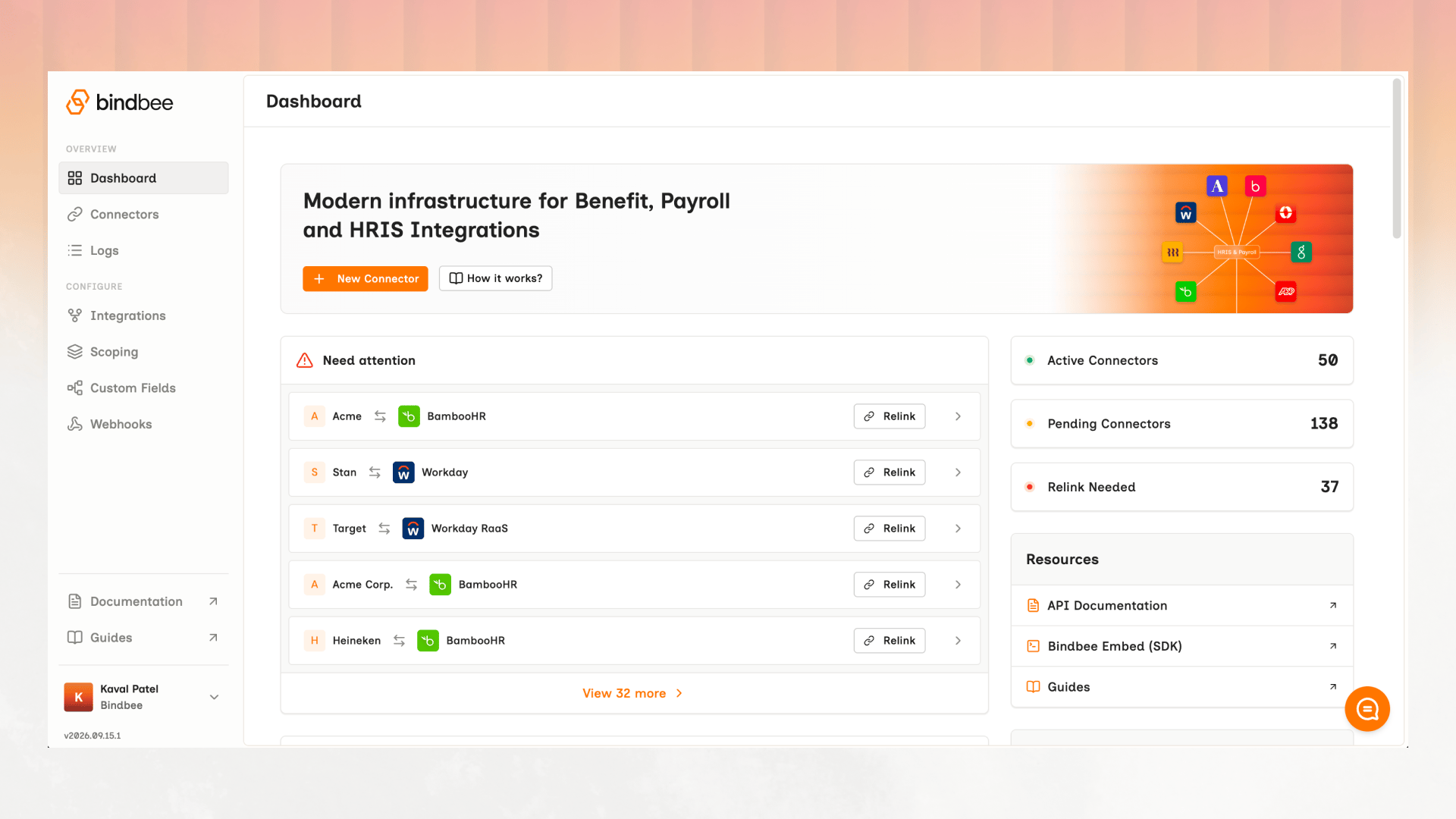
The Bindbee Dashboard, with a New Connector button, connectors grouped by integration - BambooHR 114, Workday 80, Quickbooks 21, UKG Ready 15 - and counts reading Active Connectors 162, Pending Connectors 112 and Relink Needed 38

A connection page Bindbee hosts for you. Send it to whoever runs your customer’s HR system; they sign in and approve access, and the connector is created. Their credentials never pass through your product, and you don’t build any of these screens. See How to connect for this and the other route.
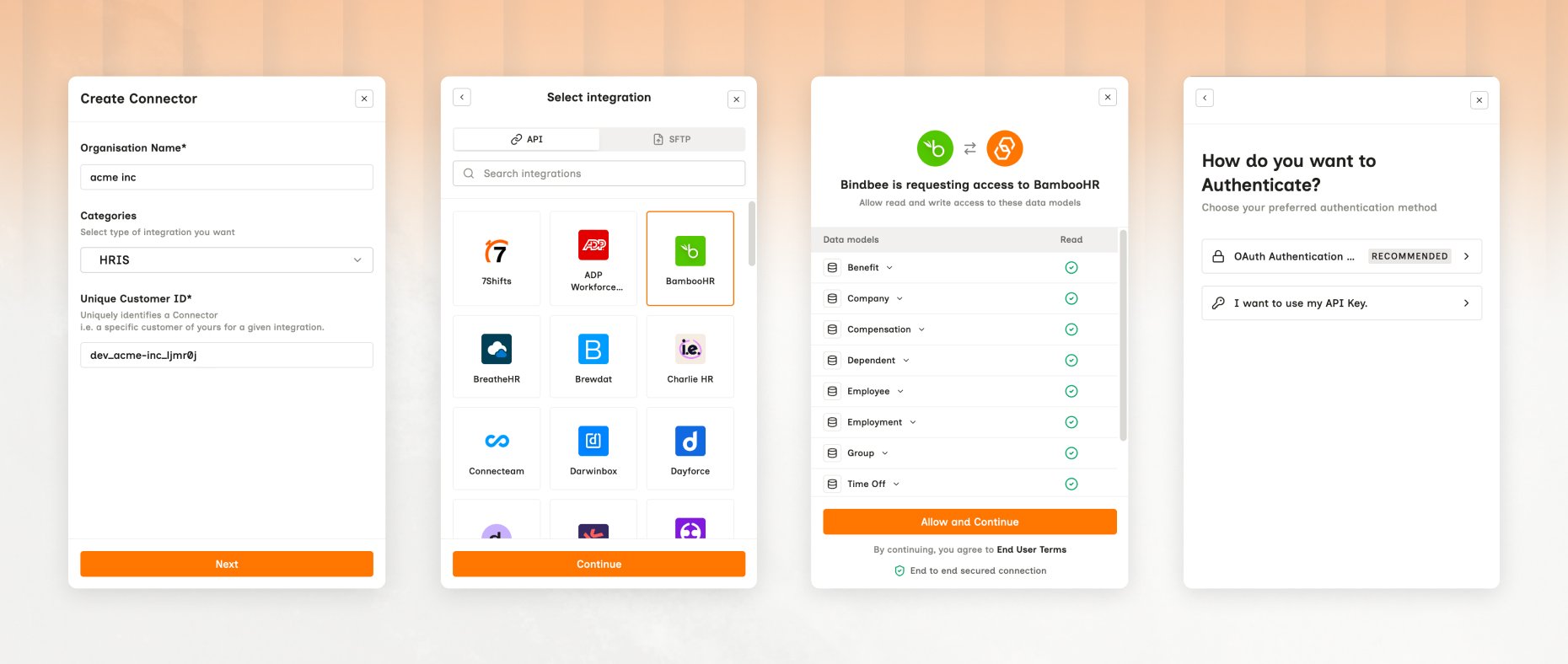
The four Magic Link screens in order: Create Connector with organization name, a category set to HRIS and a Unique Customer ID; Select integration with BambooHR chosen; a consent screen listing data models such as Benefit, Company and Employee with an Allow and Continue button; and a choice between OAuth authentication and an API key

Connectors

A connector is one customer’s authorized link to one third-party system - one connector = per customer, per system. Find them under Connectors, with separate Development and Production tabs.
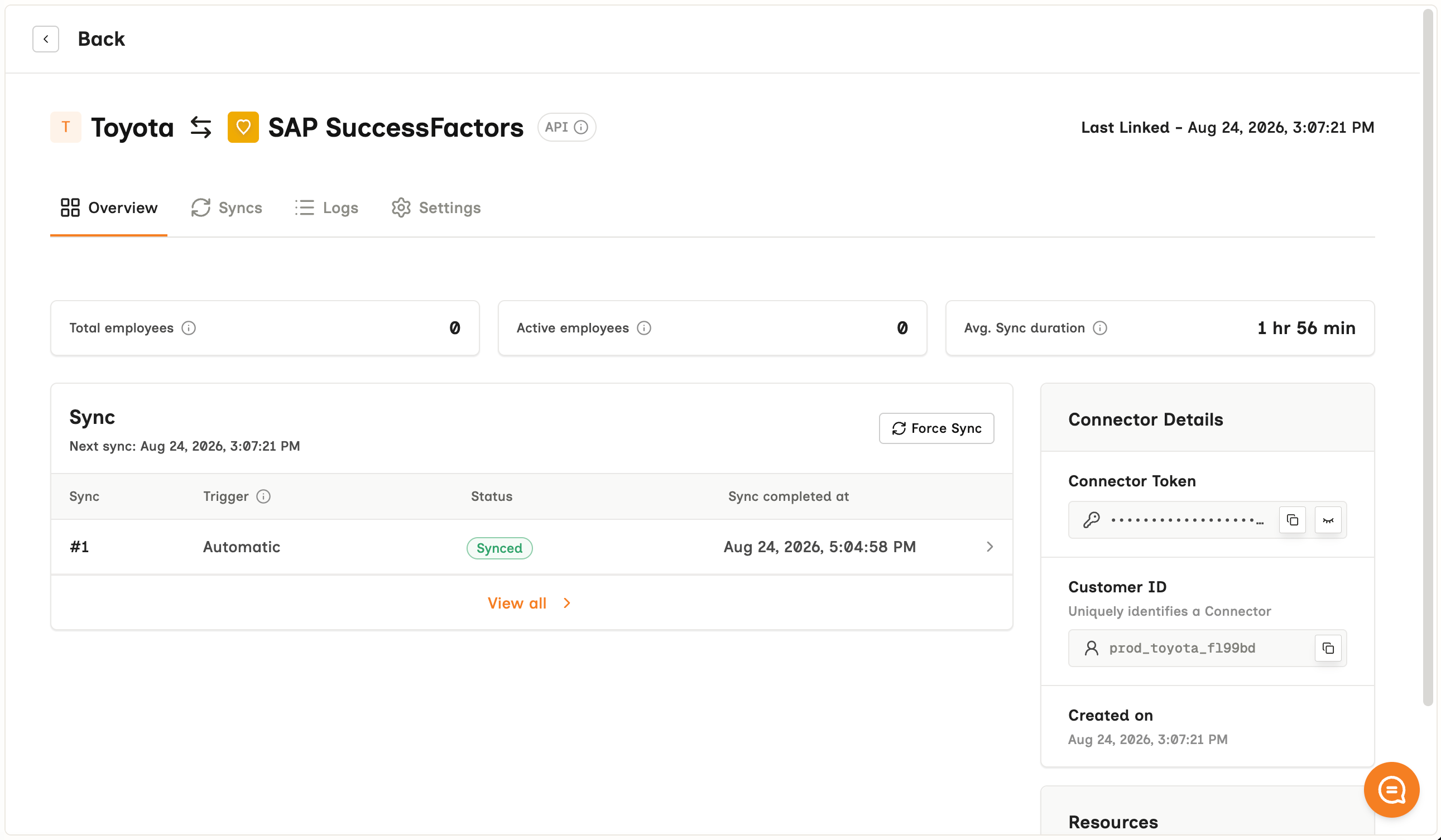
A single connector's Overview tab - Toyota linked to SAP SuccessFactors over an API connection, with Total employees, Active employees and Avg. sync duration, a Force Sync button, one sync history row marked Synced, and a Connector Details panel holding the masked Connector Token and the Customer ID prod_toyota_f199bd

Logs

Every request and response, per connector, with the source system’s own error preserved. Open Logs, or reach one connector’s logs from its own page. When a sync misbehaves this is the first place to look - see Logs.
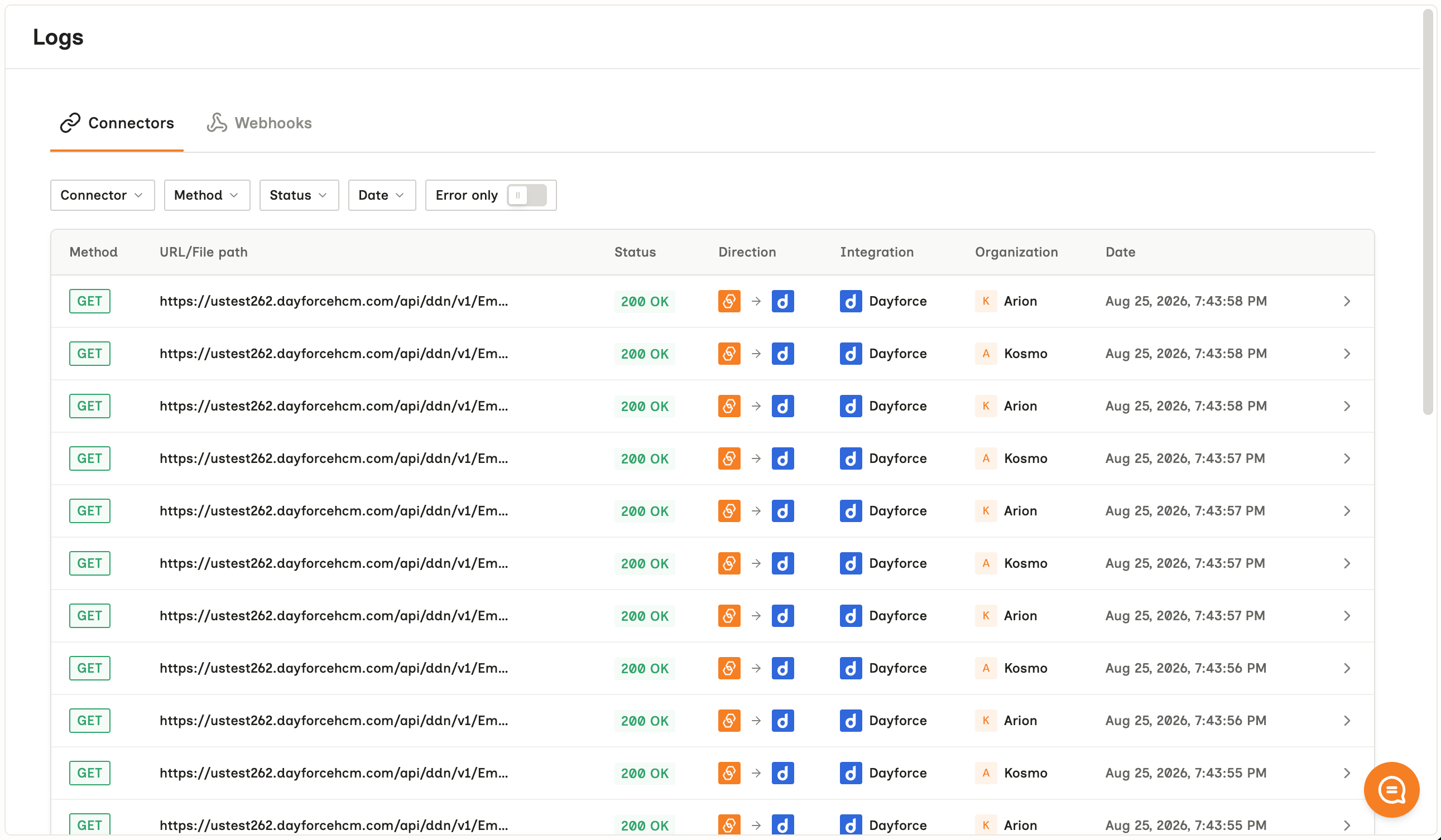
The Logs view in the Bindbee Dashboard, listing requests by connector

Custom Fields

Where you define values the unified model does not carry and map them out of the source system’s own payload. Learn more on Custom Fields.
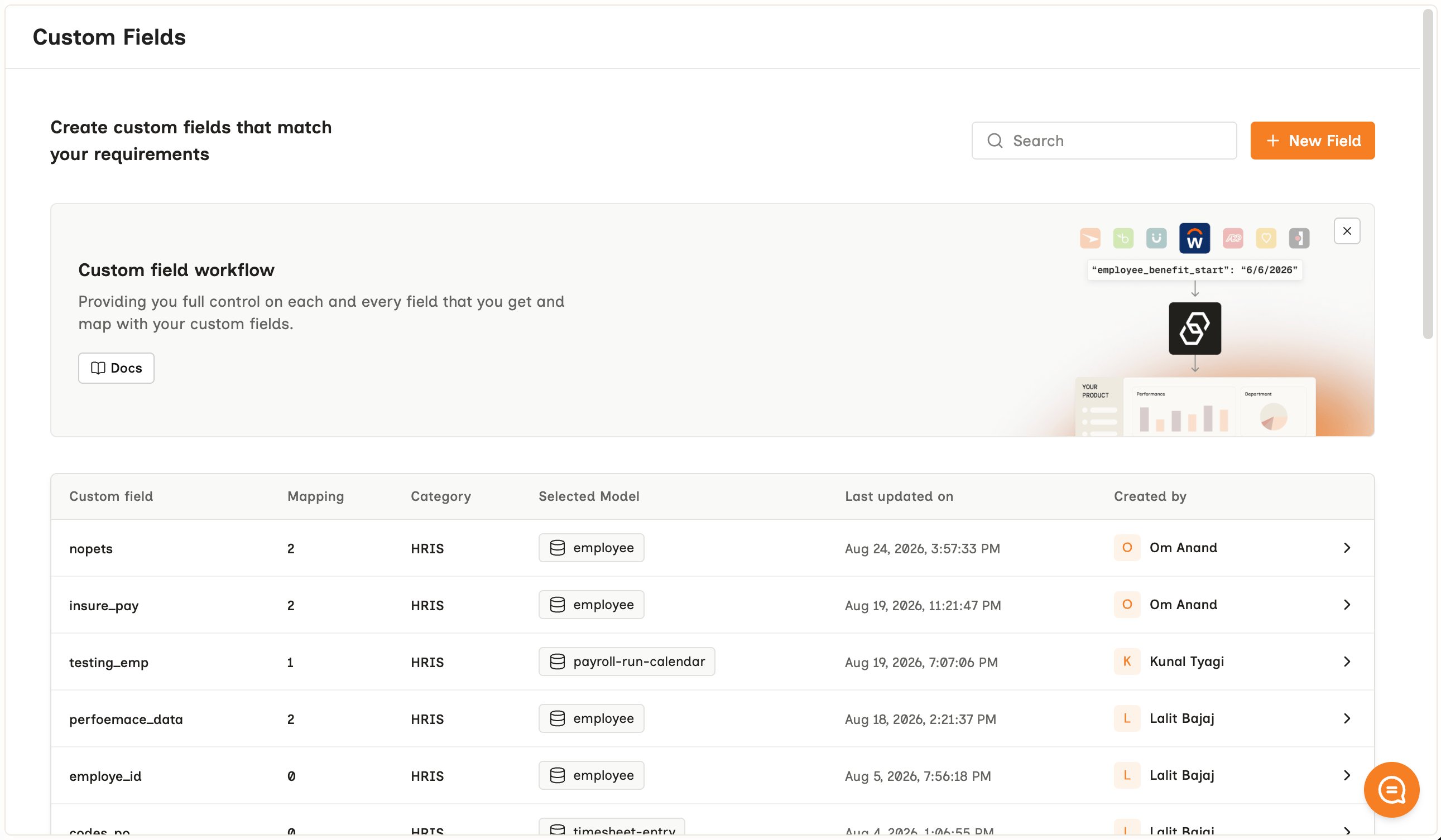
The Custom Fields screen with a New Field button and a table of existing fields - nopets, insure_pay, testing_emp - each showing how many mappings it has, its category, the model it attaches to such as employee or payroll-run-calendar, and when it was last updated

Webhooks

Where you register a destination URL, choose which events reach it, and find the signing key. See Webhook.
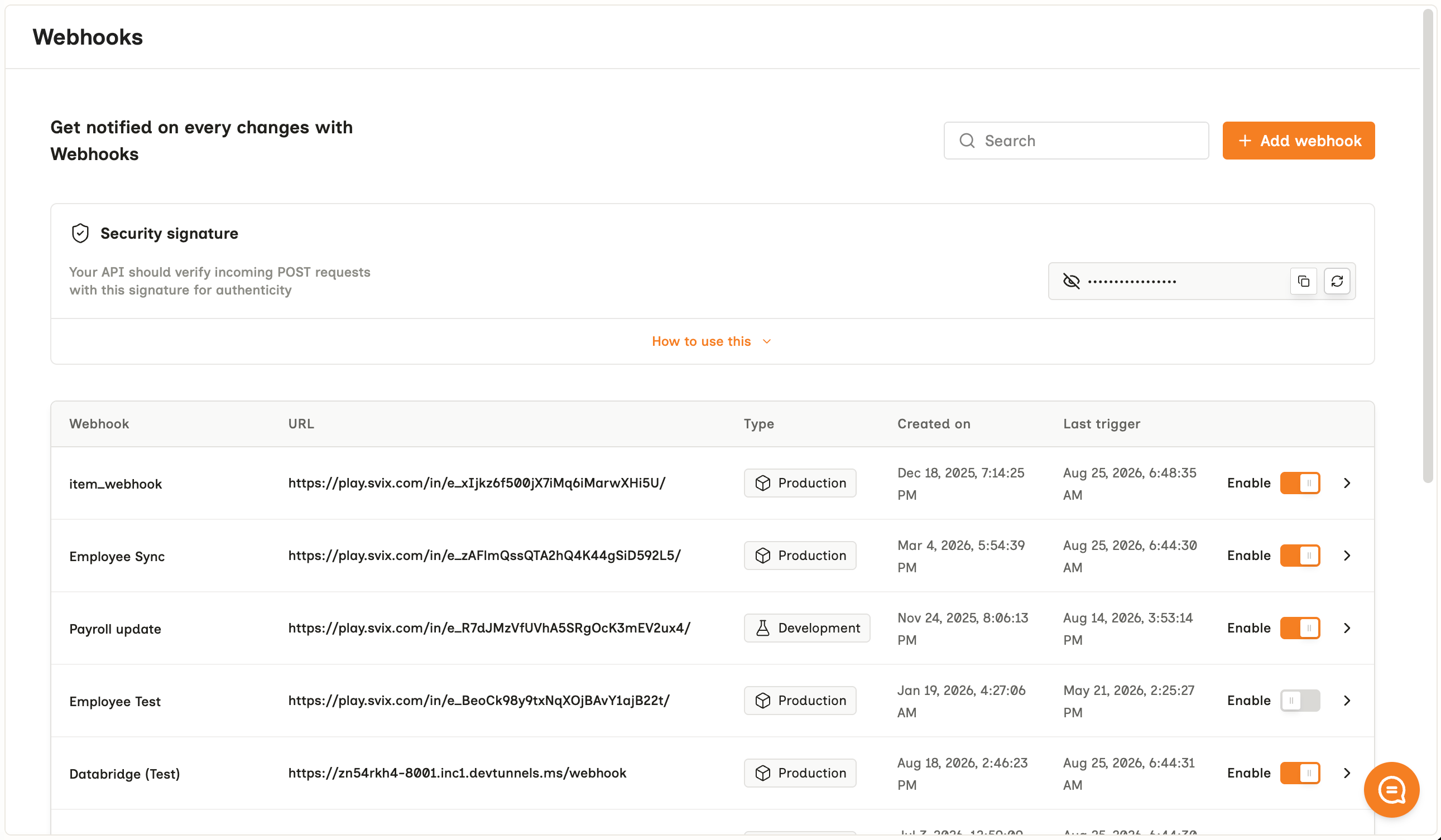
The Webhooks screen with an Add webhook button, a Security signature panel holding the masked signing key, and a table of webhooks listing each destination URL, its Production or Development type, when it was created, when it last triggered, and an Enable toggle

Changelog

What has changed in the Bindbee platform - new integrations, new models and fields, and behavior changes worth knowing about before they reach your connectors.
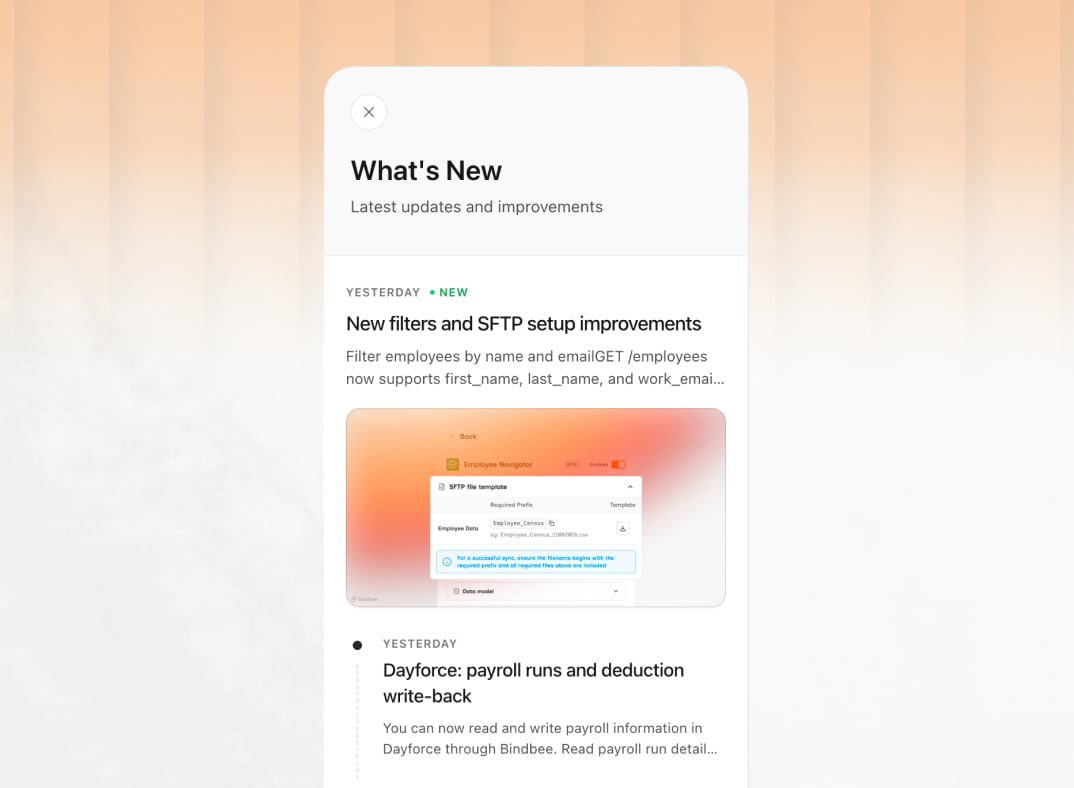
The What's New panel listing recent platform changes, each dated - new employee filters and SFTP setup improvements marked NEW, and Dayforce payroll runs and deduction write-back

Where to next

How to connect

The two ways a connector gets created - a hosted Magic Link, or the Embedded SDK.

API basics

Authentication, pagination, rate limits and sync frequency.